Monday, April 29, 2024

There were some problems installing updates, but we'll try again later. If you keep seeing this and want to search the web or contact support for information, this may help: (0x80070643)

 Microsoft has provided a script fix mentioned here in detail on how to run a script that increases the size of the WinRE partition.

#1

In the Windows search,

Search for Windows Powershell, right-click it and choose run as administrator.

Next, execute this command:

set-executionpolicy remotesigned

Afterwards, select Yes to All when prompted. Keep the Window open.

#2

Download this script.

https://ywg2216-my.sharepoint.com/:u:/g/personal/sumit_sumitdh_com/EZl7EZYIO7ZIh3sekEg3b7gBpng2Rorpmgh8B7EtlV-PZg?e=CU642G

Make two folders on your C drive root, with names 1 and 2, so their paths are as follows:

C:\1

C:\2

Paste the script file you downloaded into folder 1.

In the Powershell window, navigate to the C drive folder and enter this command:

cd C:\1

This will ensure the folder which contains the script is selected. Now, we need to run the script, which increases the size of WinRE. For that, run the following command:

.\1.ps1

After that, press Y to confirm running the script.


If the system does not allow to run the script please follow this.


Wednesday, August 16, 2023

Error code 0x80242016 on Windows 10 version 20H2 update,


Please visit the link below and follow the instruction 100% success.


Error code 0x80242016 on Windows 10 version 20H2 update

Windows 10 Feature Update 20H2 consistently fails with ...

Windows 10 Update 20H2 Error 0x80242016

Windows 10 update error : 0x80242016 - Microsoft Community


How to Fix Error '0x80242016 – Failed to Install' on Windows

https://www.microsoft.com/en-us/software-download/windows10


Download the tool and leave the system un-restarted till the progress reach till 100%


Saturday, October 29, 2022

Monday, April 18, 2022

Windows Too slow after update or upgrade.


source: -

Using System File Checker in Windows (microsoft.com)

System File Checker is a utility in Windows that checks for problems with files on your computer. To run it, follow these steps:

  1. Make sure you've installed the latest updates for Windows, and then restart your machine. To find out more, read Update Windows.

  2. In the search box on the taskbar, type Command Prompt, and right-click or press and hold Command Prompt (Desktop app) from the list of results. Select Run as administrator, and then select Yes.

  3. Type DISM.exe /Online /Cleanup-image /Restorehealth (note the space before each "/"), and then press Enter. (Note: This step may take a few minutes to start and up to 30 minutes to complete.)

  4. After you see a message that says "The operation completed successfully," type sfc /scannow (note the space between "sfc" and "/") and press Enter.

  5. After you see a message that says, "Verification 100% complete," type exit.

Tuesday, April 5, 2022

WINDOWS 10 - WINDOWS LOADS WITH TEMPORARY PROFILE

 1. Open command prompt and enter the following command

whoami /user

2. You will get the following result and make note of the SID (Security Identifier) for this current account. You will need to know the SID (ex: S-1-5-21-....-1328) 

3. Sign out from the user and login as administrator if your logged in user is not an administrator.

4. 


5. Navigate to the ProfileList key at the location below in the left pane of Registry Editor. (see screenshot below)

 HKEY_LOCAL_MACHINE\SOFTWARE\Microsoft\Windows NT\CurrentVersion\ProfileList


6. 


7. change the below settings as in the images.


8. Check the state and change it to 0 if the value is other than zero


9. exit the registry and restart


Thursday, January 20, 2022

Local user is having admin privileges even if domain has no admin privilege

 Some times there are issues in the local computers that domain users without admin privileges are allowing to insatll programs as if they have admin privileges. this is beacuse of the GPO policy of the local computers which can be changed like below.


change this as below.


Now the system will ask for credentials.


Monday, December 6, 2021

mapping network drive gpo


Go to search -> type “Group Policy Management”


How to manage password policy in GPO or Group Policy Objects


1.       Go to search -> type “Group Policy Management”


2.          


Monday, November 15, 2021

How to convert windows 10 home to professional.

 How to convert windows 10 home to professional.


With the help of following key you can upgrade your windows 10

from home to professional, 


VK7JG-NPHTM-C97JM-9MPGT-3V66T - enter this key in change product key option

 How to connect the workgroup devices with the domain devices 

Ways of resolving hosts and IP addresses

You can use a hosts file or a domain name server to resolve host names and IP addresses on a stand-alone or distributed deployment.

Resolving host names with a DNS server

If you are using a name server or DNS server to resolve host names, the host name must be configured on the DNS server. The host name you configure on the DNS server must also match the host name configured in the operating system.
  1. To check the host name on the operating system, in a command prompt, type:

    hostname

    For example: If the computer is ibm1, the system displays the following result:
    ibm1
  2. Verify the computer name information:
    1. Right-click My Computer.
    2. Click Properties.
    3. Click the Computer Name tab.
    4. Verify that the Full computer name field displays the fully qualified domain name of the computer. For example ibm1.example.com
      Note: To view the NetBIOS name for the local computer, click Change, then click More. Alternatively, in a command prompt, type nbtstat -n.
  3. Check the host name configured on the DNS server. Run the following command:

    nslookup host_name

    Where host_name is the host name.

    The nslookup command returns the fully qualified domain name configured on the DNS server. For example: ibm1.example.com.

  4. Check that the host is responding. You can run the following command:

    ping host_name

    Where host_name is the host name.

    Note: In some environments, the ping command might fail if the computer is configured to ignore ping requests. Check with your network administrator for alternative ways, if the problem persists.

Resolving host names with a hosts file

Domain names or IP addresses on a local computer can be resolved by adding entries in the local hosts file on a computer. Entries in the local hosts file have the added advantage that the system can run the application server, even when disconnected from the network. If you are using a hosts file to resolve IP addresses, the file must be configured correctly.

The location of the hosts file for:
Windows
SystemDrive:\Windows\System32\Drivers\etc\
Linux
/etc/hosts
The file must include the following information:
  • The IP address, fully qualified domain name, and the host name of the computer.
  • The IP address 127.0.0.1, the fully qualified domain name localhost.localdomain, and the host name localhost.
For example: for a computer with a host name ibm1, the hosts file might contain the following entries:
#IP address        Fully Qualified Domain Name   Short Name
 102.54.11.38	     ibm1.example.com              ibm1
    127.0.0.1      localhost.localdomain         localhost

Source:-

Ways of resolving hosts and IP addresses - IBM Documentation


Tuesday, May 4, 2021

Recovering the lost files /deleted files/lost drives from the windows

 Recovering the lost files from the windows 10 was a big task for me and I have tried lots of freeware to recover it. But after recovering the files were not able to open always. Finally I found out that the windows has its own solution for it. But only thing is that I feel it will work only from Windows 10 as my requirement was for windows 10. Please refer the below link from microsoft for more details.

Download the apps from the windows store as below.


https://support.microsoft.com/en-us/windows/recover-lost-files-on-windows-10-61f5b28a-f5b8-3cc2-0f8e-a63cb4e1d4c4


Monday, January 11, 2021


Hyperlink not opening


Your organization's policies are preventing us from completing this action for you. For more info, please contact your help desk.


Error Message : Your organization’s policies are preventing us from completing this action for you. For more info, please contact your help desk.


Visit the below link


Wednesday, May 24, 2017

Windows 7 & 10 temp profile issue.

WINDOWS 7 - WINDOWS LOADS WITH TEMPORARY PROFILE

How to restore the correct user profile after Windows starts logging in with a temporary user profile.
The first step, if the profile is not completely corrupt, is to rename the temporary profile registry key and revert the correct profile back.
  1. Log in with your temporary profile if your account has administrative rights or with the local administrator account.
  2. Start the registry editor and navigate to HKLM\SOFTWARE\Microsoft\Windows NT\CurrentVersion\ProfileList

  3. Look for the profile with the ".bak".  This is the CORRECT old profile.

  4. Rename the profile that does not have ".bak" by adding "_new" to the end.  You can really add anything to change the name of this profile, just be sure to rename the profile with the matching SID.  Next remove the ".bak" from the correct profile.


  5. Log off and then log back in with the profile that was problematic.  It is possible that Windows will undo everything you have just done and rename the profile again.  If this happens you can try running a Check Disk on the partition that contains the user profiles.  You will need to re-do all the steps above, run Check Disk, and restart.  If this doesn't correct the issue, you will need to remove the offending profile and recreate it.
To remove the domain profile and recreate it:
  1. Follow the above steps to clean up the registry, then log in as a local administrator.
  2. Navigate to the profile directory C:\Users\NetID and back up any data that is needed from the profile.
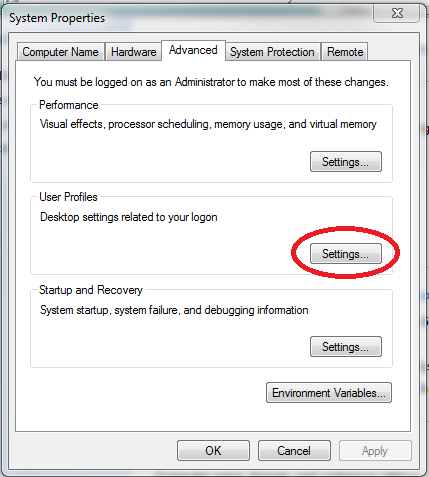
  3. Navigate to All Control Panel Items>>System>>Advanced system settings>>Settings


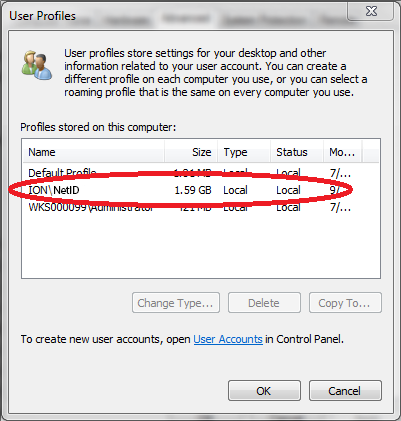
  4. Locate the corrupt profile ION\NetID and Delete this profile.


  5. Navigate to C:\Users and make sure the folder titled by the corrupt profile NetID is gone.  If not, delete this folder.
  6. Log out or restart and log back in using the previously corrupt NetID profile.  Windows will build a new profile for this NetID from the Default profile.
  7. Restore any data to the profile that was previously backed up.


Source : https://kb.uwplatt.edu/page.php?id=33215

Wednesday, October 22, 2014

How to convert the DatagridView cell from textbox to combobox

Here is the code for converting the DatagridView cell from textbox to combobox

But make sure that you are populating the combo box with the items available in the datagrid cells. Otherwise it will give error msg. As shown in the example the datas in the text box also should be as same as the combobox.


With DataGridView1
        If .Rows.Count = 0 Then Exit Sub
        i = Datagridview1.currentrow.index

        Dim gridComboBox As New DataGridViewComboBoxCell
        gridComboBox.Items.Add("PR") 'Populate the Combobox
        gridComboBox.Items.Add("AB") 'Populate the Combobox
        gridComboBox.Items.Add("SL") 'Populate the Combobox
        .Item(8, i) = gridComboBox
    End With